
Find and Restore Your Lost Photos and Files Right Now
Restoring your most precious files is simple and secure. Your peace of mind is our priority.
Anúncios
Even after a permanent deletion, your most important memories aren’t gone forever.
what do you need to recover?
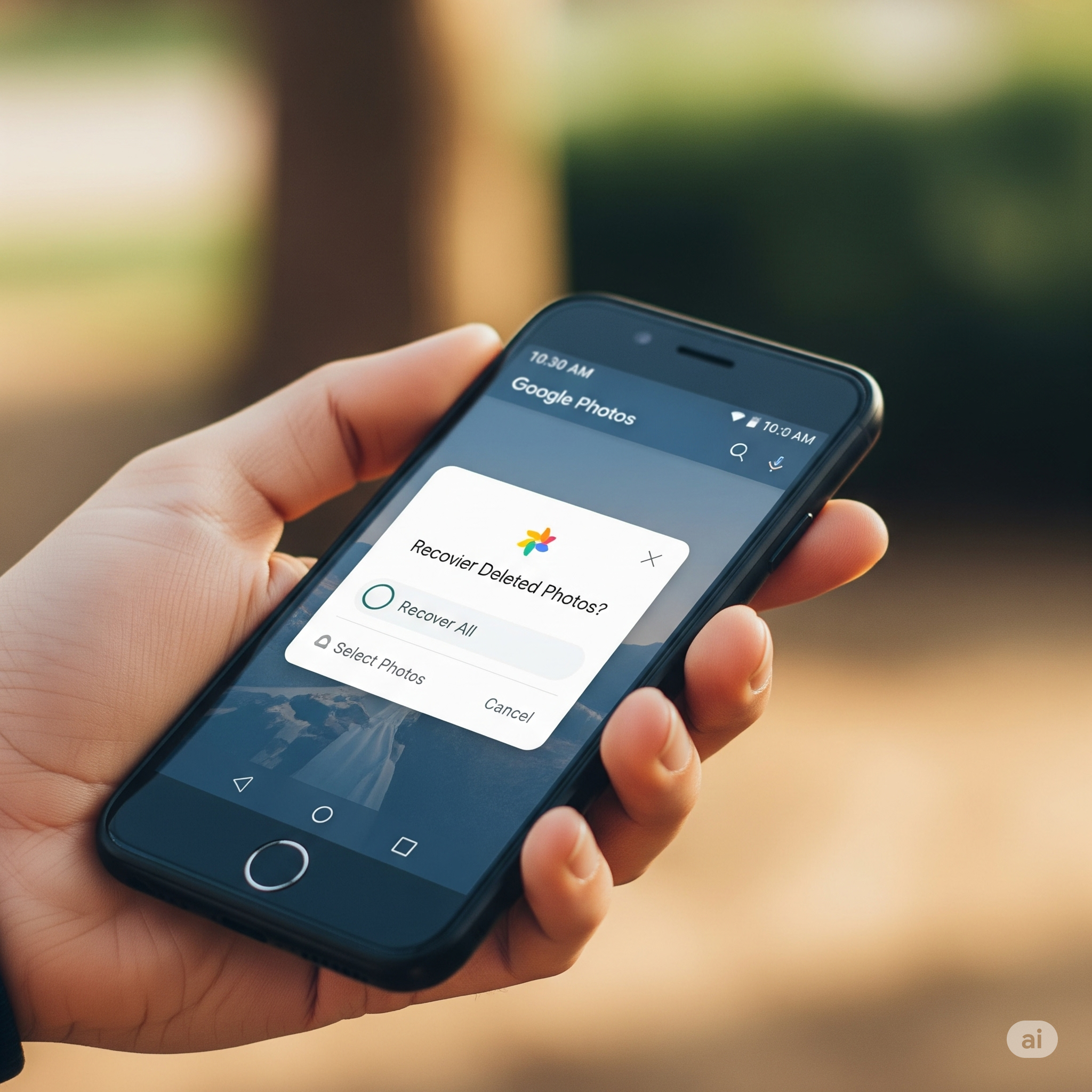
It’s a heart-stopping moment: you go to find a photo or an important document on your phone, and it’s simply gone.
Whether it was a quick slip-up, a system error, or a mysterious disappearance, losing files is a common and stressful experience. But don’t worry—in many cases, the data isn’t truly gone.
Anúncios
This guide will show you how to recover deleted files from your smartphone, whether it’s an Android or an iPhone.
We’ll cover what happens when you hit “delete,” the best tools for the job, and most importantly, how to prevent it from happening again.
What Actually Happens When You Delete a File?
Contrary to what many people think, deleting a file doesn’t erase it instantly.
Instead, your phone’s operating system simply removes the link to the file and marks the storage space it occupied as available for new data.
Think of your phone’s storage as a large bookshelf with a master index. When you delete a file, you’re just removing its card from the index.
The “book” (your file) stays on the shelf until a new book needs that exact spot. If you act quickly, you can still find and retrieve it before a new file is saved there.
This is why acting fast is the most important step—every photo you take, app you download, or message you save reduces your chances of a successful recovery.
Common Reasons for File Loss
Knowing why your files disappeared can help you choose the best recovery method. Here are the most frequent culprits:
- Accidental Deletion: The most common cause, from a mis-tap to a quick file purge.
- Software Glitches: A bug in the operating system or a failed update can corrupt your storage.
- Factory Reset: If done without a backup, this will wipe all data from your device.
- Malware or Viruses: Malicious software can intentionally delete or hide your files.
- Physical Damage: A drop or water exposure can physically damage the phone’s storage.
- Corrupted SD Card: A faulty external memory card can lose all its content without warning.
Top File Recovery Apps (2025)
To get your files back, you need a reliable tool. Here are some of the most effective apps available this year.
- DiskDigger (Android) This is a go-to for recovering photos and videos on Android. It’s known for its simple interface and effective scans. It can perform a basic scan without a rooted device, but a deeper one requires root access.
- Pros: Easy to use, great for media files, fast scans.
- Cons: Limited features without root.
- Dr.Fone – Data Recovery (Android / iOS) This is an all-in-one toolkit that goes beyond simple media recovery. It can retrieve a wide variety of file types, including messages, contacts, and call logs. It’s also a good option for non-responsive or damaged devices.
- Pros: Works on both Android and iOS, recovers a vast range of data, can fix system issues.
- Cons: Full features are part of a premium plan.
- EaseUS MobiSaver (Android / iOS) This tool is user-friendly and great for recovering photos, videos, contacts, and messages. A standout feature is its file preview option, which lets you see the recoverable files before you restore them, saving you from sorting through unnecessary data.
- Pros: Intuitive interface, file preview, compatible with both OS.
- Cons: Key features are limited in the free version.
- Dumpster (Android) This app acts as a proactive digital trash bin. Once installed, it automatically saves a backup of files you delete, giving you a second chance. It’s a great preventive tool.
- Pros: Prevents future data loss, no root needed, instant restoration.
- Cons: Only protects files deleted after you install it.
- Tenorshare UltData (Android / iOS) A powerful tool known for its high success rate without requiring root access. It can recover photos, videos, messages, and more from most recent devices with a clean and simple interface.
- Pros: High success rate, supports many file types, intuitive design.
- Cons: Some features are only available in the paid version.
A Step-by-Step Guide to Recovery
To maximize your chances of getting your files back, follow these steps carefully:
- Stop using your phone immediately. Don’t take photos, download apps, or save new files.
- Install a reliable app from an official app store like Google Play or the App Store.
- Grant all necessary permissions for the app to scan your device’s storage.
- Run a full scan and wait for it to finish. Be patient; a deep scan can take a while.
- Review the found files and select the ones you want to restore.
- Save the recovered files to a new location to avoid overwriting other data.
Prevention is the Best Strategy
While recovery is possible, it’s always better to avoid data loss in the first place. Adopting these simple habits can give you peace of mind.
- Enable automatic backups: Use cloud services like Google Photos, iCloud, or OneDrive to sync your files in real time.
- Use a preventive app: Install a “recycle bin” app like Dumpster for an extra layer of protection.
- Be careful with app permissions: Avoid downloading suspicious apps that request unnecessary access to your data.
- Keep your system updated: Regular updates can fix bugs that might cause data loss.
Final Thoughts
Losing a file doesn’t have to be permanent.
By understanding what happens when you hit “delete,” acting quickly, and using the right tools, you can often restore your precious photos, videos, and documents.
The key is to stay calm, follow the steps, and remember that prevention is your best defense against data loss.
Now you have all the tools and knowledge to recover your files with confidence.
